 Grades 8–12
Offline AI Chat Assistant
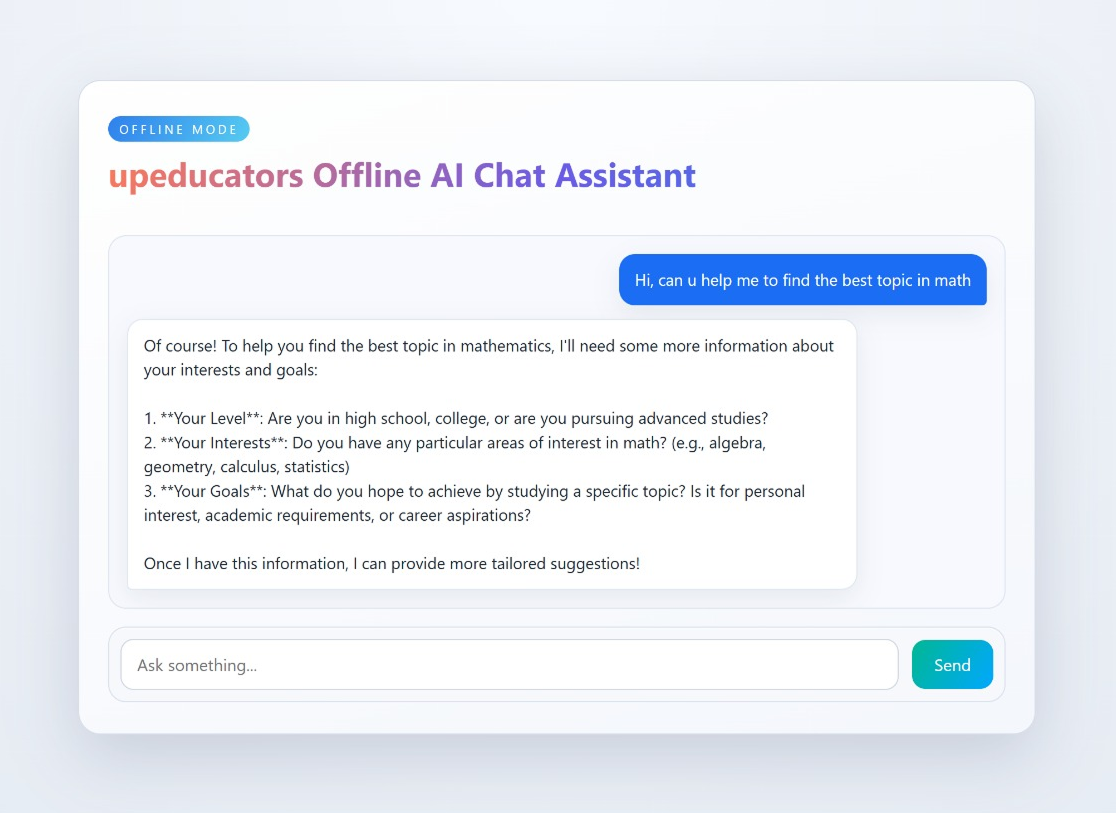
Offline AI Chat Assistant is a simple conversational web app that helps students understand how AI-powered chat systems work without relying on the internet. Built using Next.js and a locally running Ollama model, the assistant accepts a user question, sends it to the local AI runtime, and displays a helpful response. The project focuses on understanding request–response flow, prompt handling, and privacy-first AI design. All interactions stay on the student’s laptop, making it safe for classroom use and ideal for learning core AI concepts without external dependencies.
 Purpose
Help students understand how AI chat systems work while avoiding black-box cloud dependencies.
 Agenda
Build a simple offline AI chat interface using Next.js and a local Ollama model.
 Output
A privacy-safe, offline AI chat assistant running fully on the student's laptop.
offline-chat-assistant/ |--app/ ||-- page.tsx ||-- layout.tsx ||-- api/ || `-- chat/route.ts |--components/ ||-- ChatBox.tsx |`-- MessageBubble.tsx |--lib/ |`-- chatClient.ts |--globals.css |--package.json `--tsconfig.json
1
Create project workspace
Set up a clean project folder for the chat assistant.
Command
In File Explorer, choose a location (like D:\Projects or Documents) and create a folder named offline-chat-assistant.
Open that folder in Visual Studio Code (File > Open Folder).
Open a terminal in VS Code (Terminal > New Terminal, or Ctrl+`).
Explanation
Lets students choose a clear folder location first, then work inside VS Code without defaulting to C:\Users.
Expected Result:
VS Code is open to offline-chat-assistant with the terminal ready.
2
Initialize Next.js application
Create a full-stack React app with built-in API support.
Command
If Node.js is not installed, download and install the LTS version from https://nodejs.org/.
Close and reopen the VS Code terminal.
Verify Node is installed:
node -v
npm -v
Then run:
npx create-next-app@latest . --ts
Explanation
Installs Node.js first on a fresh laptop, then scaffolds a Next.js + TypeScript app.
Expected Result:
Node and npm report versions, and the Next.js project is created successfully.
3
Install Ollama locally
Run an AI model directly on the student’s laptop.
Command
Download and install Ollama from https://ollama.ai/download.
Close and reopen the VS Code terminal.
Verify Ollama is installed:
ollama --version
Then run:
ollama pull qwen2.5:7b
ollama serve
Explanation
Installs Ollama on a fresh system, then starts a local AI runtime without cloud APIs.
Expected Result:
Ollama reports a version and runs at http://localhost:11434.
4
Verify chat API route
Confirm the backend endpoint exists before wiring it up.
Command
In VS Code Explorer, confirm app/api/chat/route.ts exists.
Or in the VS Code terminal, run:
mkdir app\api\chat
Explanation
This avoids recreating files that were already added in the folder structure step.
Expected Result:
route.ts is present under app/api/chat.
5
Run the development server
Start the app and verify everything loads correctly.
Command
npm run dev
Explanation
Runs the app locally with live reload for faster learning.
Expected Result:
The chat interface opens at http://localhost:3000.
import './globals.css';

export default function RootLayout({ children }: { children: React.ReactNode }) {
  return (
    <html lang="en">
      <body className="app-body">
        {children}
      </body>
    </html>
  );
}
"use client";
import { useState } from 'react';
import { sendMessage } from '@/lib/chatClient';
import { ChatBox } from '@/components/ChatBox';
import { MessageBubble } from '@/components/MessageBubble';

type Message = {
  role: 'user' | 'ai' | 'system';
  text: string;
};

export default function Page() {
  const [messages, setMessages] = useState<Message[]>([]);
  const [isLoading, setIsLoading] = useState(false);

  const handleSend = async (text: string) => {
    const trimmed = text.trim();
    if (!trimmed) return;
    setMessages((prev) => [...prev, { role: 'user', text: trimmed }]);
    setIsLoading(true);

    try {
      const reply = await sendMessage(trimmed);
      setMessages((prev) => [...prev, { role: 'ai', text: reply }]);
    } catch (err) {
      setMessages((prev) => [
        ...prev,
        { role: 'system', text: 'Sorry, something went wrong. Try again.' }
      ]);
    } finally {
      setIsLoading(false);
    }
  };

  return (
    <div className='chat-container'>
      <main className='chat-app'>
        <header className='chat-header'>
          <p className='chat-eyebrow'>Offline mode</p>
          <h1>Offline AI Chat Assistant</h1>
        </header>

        <section className='chat-feed' aria-live='polite'>
          {messages.map((msg, idx) => (
            <MessageBubble key={`${msg.role}-${idx}`} role={msg.role} text={msg.text} />
          ))}
          {isLoading && <MessageBubble role='ai' text='Thinking' isLoading />}
        </section>

        <ChatBox onSend={handleSend} disabled={isLoading} />
      </main>
    </div>
  );
}
import { useState } from 'react';

type Props = { onSend: (text: string) => void; disabled?: boolean };

export function ChatBox({ onSend, disabled = false }: Props) {
  const [text, setText] = useState('');

  const handleSend = () => {
    if (disabled) return;
    onSend(text);
    setText('');
  };

  return (
    <div className='chat-input-row'>
      <input
        value={text}
        onChange={(e) => setText(e.target.value)}
        onKeyDown={(e) => {
          if (e.key === 'Enter') {
            e.preventDefault();
            handleSend();
          }
        }}
        placeholder='Ask something...'
        className='chat-input'
        disabled={disabled}
      />
      <button
        onClick={handleSend}
        className='chat-button'
        disabled={disabled}
      >
        {disabled ? 'Sending...' : 'Send'}
      </button>
    </div>
  );
}
type Props = { role: 'user' | 'ai' | 'system'; text: string; isLoading?: boolean };

export function MessageBubble({ role, text, isLoading = false }: Props) {
  const roleClass =
    role === 'user' ? 'bubble-user' : role === 'ai' ? 'bubble-ai' : 'bubble-system';

  return (
    <div className={`bubble ${roleClass} ${isLoading ? 'bubble-loading' : ''}`}>
      {isLoading ? (
        <span className='typing-dots' aria-label='AI is typing'>
          <span />
          <span />
          <span />
        </span>
      ) : (
        <span>{text}</span>
      )}
    </div>
  );
}
* {
 font-family: system-ui, -apple-system, 'Segoe UI', Roboto, 'Helvetica Neue', Arial, 'Noto Sans', 'Liberation Sans', sans-serif;
  box-sizing: border-box;
}

body.app-body {
  margin: 0;
  min-height: 100vh;
  color: #1f2430;
  background: radial-gradient(circle at top, #f8fbff 0%, #eef2f8 45%, #e5ebf3 100%);
  display: flex;
  justify-content: center;
  align-items: center;
  padding: 32px 16px;
}

.chat-container {
  width: min(860px, 100%);
  margin: 0 auto;
}

.chat-app {
  min-height: 520px;
  display: flex;
  flex-direction: column;
  gap: 16px;
  background: linear-gradient(160deg, #ffffff 0%, #f4f7fc 100%);
  border-radius: 20px;
  border: 1px solid #d7deea;
  box-shadow: 0 20px 60px rgba(42, 58, 87, 0.18);
  padding: 30px 26px 28px;
}

.chat-header {
  margin-bottom: 20px;
}

.chat-eyebrow {
  display: inline-block;
  margin: 0 0 8px;
  padding: 4px 10px;
  font-size: 11px;
  letter-spacing: 0.24em;
  text-transform: uppercase;
  color: #ffffff;
  background: linear-gradient(120deg, #2f80ed, #56ccf2);
  border-radius: 999px;
}

.chat-header h1 {
  margin: 0;
  font-size: 30px;
  background: linear-gradient(120deg, #ff7a59, #6c5ce7, #2f80ed);
  -webkit-background-clip: text;
  background-clip: text;
  color: transparent;
}

.chat-input-row {
  display: flex;
  gap: 12px;
  align-items: center;
  padding: 10px;
  border-radius: 16px;
  border: 1px solid #dbe2ee;
  background: #f6f8fc;
  box-shadow: inset 0 1px 0 rgba(255, 255, 255, 0.7);
}

.chat-input {
  flex: 1;
  padding: 12px 14px;
  border-radius: 12px;
  border: 1px solid #cfd8e3;
  background: #ffffff;
  font-size: 15px;
  outline: none;
}

.chat-input:focus {
  border-color: #6c5ce7;
  box-shadow: 0 0 0 3px rgba(108, 92, 231, 0.2);
}

.chat-input:disabled {
  background: #eef2f6;
}

.chat-button {
  border: none;
  padding: 12px 20px;
  border-radius: 12px;
  background: linear-gradient(120deg, #00b894, #00a8ff);
  color: #ffffff;
  font-size: 15px;
  cursor: pointer;
  transition: transform 0.15s ease, box-shadow 0.15s ease;
}

.chat-button:hover {
  transform: translateY(-1px);
  box-shadow: 0 10px 20px rgba(0, 168, 255, 0.25);
}

.chat-button:disabled {
  cursor: not-allowed;
  opacity: 0.7;
  box-shadow: none;
}

.chat-feed {
  flex: 1;
  overflow-y: auto;
  display: flex;
  flex-direction: column;
  gap: 12px;
  padding: 16px;
  border-radius: 16px;
  border: 1px solid #e0e6f1;
  background: #f7f9fe;
  min-height: 220px;
}

.bubble {
  display: inline-block;
  max-width: 85%;
  padding: 12px 14px;
  border-radius: 14px;
  line-height: 1.5;
  font-size: 14.5px;
  box-shadow: 0 8px 24px rgba(37, 46, 65, 0.08);
  white-space: pre-wrap;
}

.bubble-user {
  align-self: flex-end;
  background: #1b6ef3;
  color: #ffffff;
  border-bottom-right-radius: 4px;
}

.bubble-ai {
  align-self: flex-start;
  background: #ffffff;
  color: #1f2a36;
  border: 1px solid #e2e8f0;
  border-bottom-left-radius: 4px;
}

.bubble-system {
  align-self: center;
  background: #fff4e5;
  color: #5a3b00;
  border: 1px solid #f1d3a7;
}

.bubble-loading {
  min-width: 92px;
}

.typing-dots {
  display: inline-flex;
  gap: 6px;
  align-items: center;
}

.typing-dots span {
  width: 6px;
  height: 6px;
  border-radius: 50%;
  background: #6b7a90;
  animation: dot-bounce 1.1s infinite;
}

.typing-dots span:nth-child(2) {
  animation-delay: 0.15s;
}

.typing-dots span:nth-child(3) {
  animation-delay: 0.3s;
}

@keyframes dot-bounce {
  0%, 80%, 100% {
    transform: translateY(0);
    opacity: 0.6;
  }
  40% {
    transform: translateY(-6px);
    opacity: 1;
  }
}

@media (max-width: 540px) {
  body.app-body {
    padding: 28px 12px;
  }

  .chat-app {
    padding: 22px 18px 20px;
  }

  .chat-input-row {
    flex-direction: column;
    align-items: stretch;
  }

  .chat-button {
    width: 100%;
  }

  .bubble {
    max-width: 100%;
  }
}
export async function sendMessage(message: string) {
  const res = await fetch('/api/chat', {
    method: 'POST',
    headers: { 'Content-Type': 'application/json' },
    body: JSON.stringify({ message })
  });
  const data = await res.json();
  return data.reply;
}
import { NextResponse } from 'next/server';

export async function POST(req: Request) {
  const { message } = await req.json();

  const res = await fetch('http://localhost:11434/api/generate', {
    method: 'POST',
    headers: { 'Content-Type': 'application/json' },
    body: JSON.stringify({
      model: 'qwen2.5:7b',
      prompt: message,
      stream: false
    })
  });

  const data = await res.json();
  return NextResponse.json({ reply: data.response });
}
1. Install Git
Open https://git-scm.com/downloads, download Git, then double-click the installer and keep the default options until Finish.
2. Create a GitHub account
Open https://github.com, sign up for a free account, and verify your email address.
3. Open your project and a new terminal
In VS Code, click File > Open Folder and select your project. Then go to Terminal > New Terminal (or press Ctrl + `).
4. Set your Git username and email (one-time)
git config --global user.name "Your Name"
git config --global user.email "you@example.com"
5. Create a new repository on GitHub
Click New repository, give it a name, and keep it empty (do not add a README or .gitignore).
6. Initialize and push from the VS Code terminal
git init
git add .
git commit -m "Initial commit"
git branch -M main
git remote add origin https://github.com/<username>/<repo>.git
git push -u origin main
1. Create a Vercel account
Open https://vercel.com and sign up using your GitHub account.
2. Import your repository
Click New Project, then Import Git Repository and select the repo you just pushed.
3. Deploy
Vercel detects Next.js automatically. Click Deploy and wait for the build to finish.
4. Ship updates
Make changes locally, then run git add ., git commit, and git push. Vercel redeploys automatically.