 Grades 8–12
Nutrient Analyzer
Nutrient Analyzer uses your laptop camera to detect food items in real time with TensorFlow. When you show an item like an apple or banana, the app labels it and sends a prompt to a local Ollama model to return the nutrition summary.
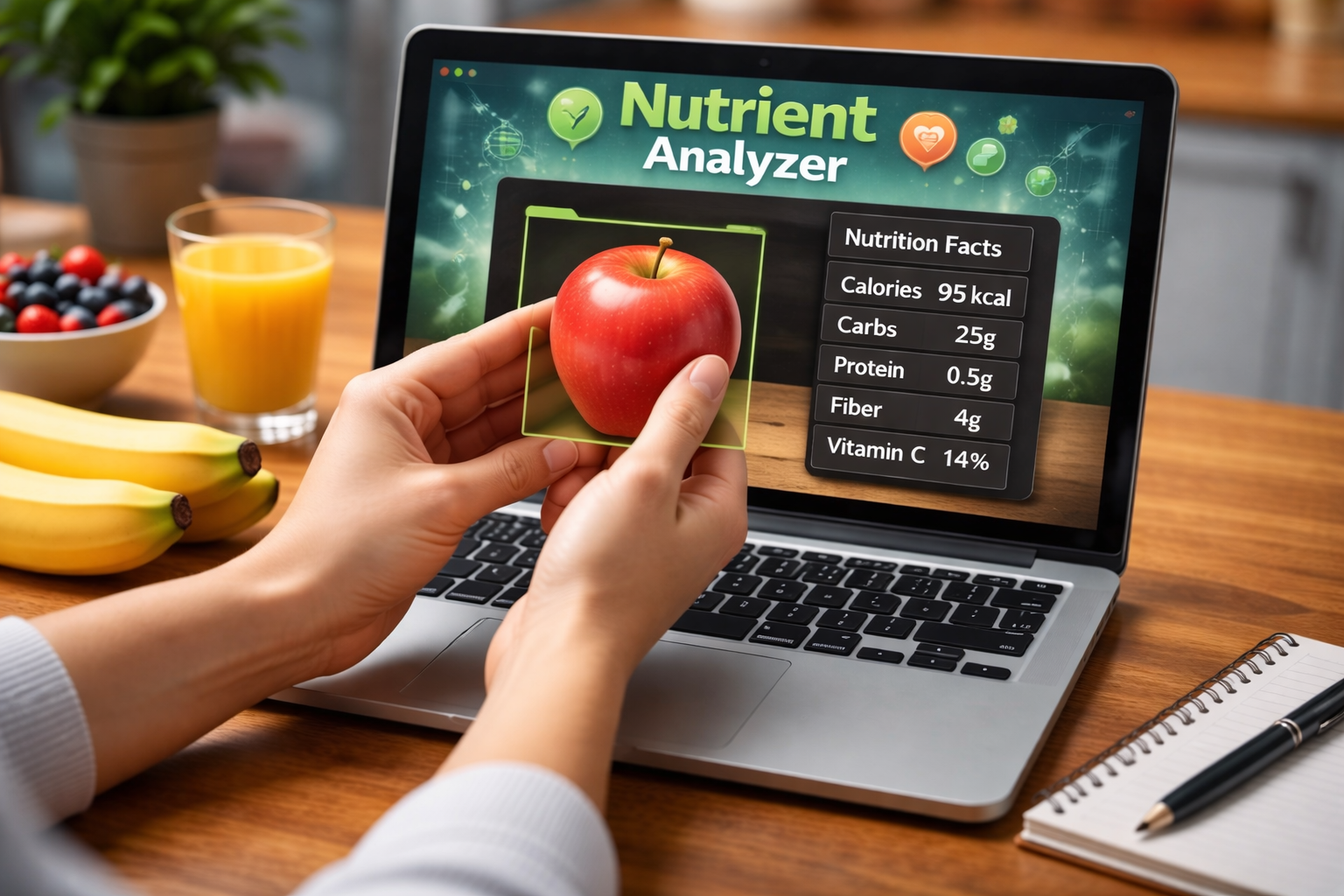
 Purpose
Help students learn how computer vision and local LLMs work together to turn camera input into useful nutrition guidance.
 Agenda
Build a camera-based food detector with TensorFlow.js and connect it to a local Ollama model for nutrition answers.
 Output
A web app that detects foods from the laptop camera and returns nutrition info using an Ollama model.
nutrient-analyzer/ |--app/ ||-- page.tsx ||-- layout.tsx ||-- api/ || `-- nutrition/route.ts |--components/ ||-- CameraFeed.tsx |`-- NutritionOverlay.tsx |--lib/ ||-- detector.ts |`-- ollamaClient.ts |--public/ |`-- assets/ |`-- images/ |`-- nutrient-analyzer.png |--globals.css |--package.json `--tsconfig.json
1
Create project workspace
Set up a clean project folder for the nutrient analyzer.
Command
In File Explorer, choose a location (like D:\Projects or Documents) and create a folder named nutrient-analyzer.
Open that folder in Visual Studio Code (File > Open Folder).
Open a terminal in VS Code (Terminal > New Terminal, or Ctrl+`).
Explanation
Start with a simple, dedicated folder so files stay organized.
Expected Result:
VS Code is open to nutrient-analyzer with the terminal ready.
2
Install Node.js and create the app
Create a Next.js + TypeScript project for the UI and API.
Command
If Node.js is not installed, download and install the LTS version from https://nodejs.org/.
Close and reopen the VS Code terminal.
Verify Node is installed:
node -v
npm -v
Then run:
npx create-next-app@latest . --ts
Explanation
Node.js is required to run Next.js and install dependencies.
Expected Result:
Node and npm report versions, and the Next.js project is created successfully.
3
Install TensorFlow.js and the camera model
Add real-time object detection in the browser.
Command
In the terminal, install TensorFlow.js and the COCO-SSD model:
npm install @tensorflow/tfjs @tensorflow/tfjs-backend-webgl @tensorflow/tfjs-backend-cpu @tensorflow-models/coco-ssd
Explanation
COCO-SSD can detect common foods like apples and bananas using the laptop camera feed.
Expected Result:
Dependencies install without errors in package.json.
4
Install and run Ollama
Run a local model for nutrition responses.
Command
Download and install Ollama from https://ollama.com/download.
Open a new terminal and start the app.
Pull a model (example):
ollama pull llama3.1
Then run the model server (if not already running):
ollama serve
Explanation
Ollama lets the app call a local model without cloud API keys.
Expected Result:
The model downloads and Ollama is running locally.
5
Add local model settings
Configure which Ollama model to use.
Command
Create a file named .env in the project root and add:
OLLAMA_MODEL=llama3.1
OLLAMA_HOST=http://localhost:11434
Explanation
This keeps the model name and host configurable without changing code.
Expected Result:
.env exists with OLLAMA_MODEL and OLLAMA_HOST values.
6
Create the nutrition API route
Send detected food labels to Ollama.
Command
Create app/api/nutrition/route.ts.
In that route, call the Ollama local endpoint at http://localhost:11434/api/generate and pass the detected food name in the prompt.
Return the nutrition text in JSON as { reply: string }.
Explanation
This backend route connects the camera detector to the local model.
Expected Result:
The route returns a nutrition summary for a sample food name.
7
Build the camera UI
Show the webcam feed and detect foods.
Command
Use getUserMedia to show the webcam in a full-window video element.
Load coco-ssd and run detection on requestAnimationFrame.
When a food label is stable for a few frames, call /api/nutrition with the label.
Render the nutrition response as an overlay on top of the camera view.
Explanation
This ties together camera input, TensorFlow detection, and an on-screen overlay from the model output.
Expected Result:
Pointing the camera at an apple or banana triggers a nutrition overlay on the live video.
8
Run the app
Start the dev server and test detection.
Command
npm run dev
Open http://localhost:3000 and allow camera permissions.
Show a food item to the camera.
Explanation
You should see a detected label and a nutrition response from Ollama.
Expected Result:
The UI shows the detected food and a nutrition summary.
import './globals.css';

export default function RootLayout({ children }: { children: React.ReactNode }) {
  return (
    <html lang="en">
      <body className="app-body">
        {children}
      </body>
    </html>
  );
}
"use client";
import { useEffect, useRef, useState } from 'react';
import { detectFrame, type Detection } from './lib/detector';
import { fetchNutrition } from './lib/ollamaClient';
import { CameraFeed } from './components/CameraFeed';
import { NutritionOverlay } from './components/NutritionOverlay';

const FOOD_LABELS = new Set(['apple', 'banana', 'orange', 'broccoli', 'carrot']);

export default function Page() {
  const videoRef = useRef<HTMLVideoElement>(null);
  const canvasRef = useRef<HTMLCanvasElement>(null);
  const [status, setStatus] = useState('Loading camera...');
  const [topFood, setTopFood] = useState<string | null>(null);
  const [topScore, setTopScore] = useState<number | null>(null);
  const [nutrition, setNutrition] = useState('');
  const [isFetching, setIsFetching] = useState(false);

  useEffect(() => {
    let stream: MediaStream | null = null;

    const startCamera = async () => {
      try {
        stream = await navigator.mediaDevices.getUserMedia({ video: { facingMode: 'environment' } });
        if (!videoRef.current) return;
        videoRef.current.srcObject = stream;
        await videoRef.current.play();
        setStatus('Point the camera at a food item.');
      } catch (err) {
        setStatus('Camera permission denied or unavailable.');
      }
    };

    startCamera();

    return () => {
      if (stream) {
        stream.getTracks().forEach((track) => track.stop());
      }
    };
  }, []);

  useEffect(() => {
    let rafId = 0;
    let lastLabel = '';
    let stableCount = 0;

    const drawOverlay = (detections: Detection[]) => {
      const canvas = canvasRef.current;
      const video = videoRef.current;
      if (!canvas || !video) return;
      const ctx = canvas.getContext('2d');
      if (!ctx) return;
      canvas.width = video.videoWidth;
      canvas.height = video.videoHeight;
      ctx.clearRect(0, 0, canvas.width, canvas.height);
      ctx.strokeStyle = '#2dd4bf';
      ctx.lineWidth = 2;
      ctx.font = '14px Segoe UI, Arial, sans-serif';

      detections.forEach((det) => {
        const [x, y, width, height] = det.bbox;
        ctx.strokeRect(x, y, width, height);
        ctx.fillStyle = 'rgba(45, 212, 191, 0.85)';
        ctx.fillRect(x, y - 18, ctx.measureText(det.class).width + 12, 18);
        ctx.fillStyle = '#062a2a';
        ctx.fillText(det.class, x + 6, y - 4);
      });
    };

    const loop = async () => {
      const video = videoRef.current;
      if (!video || video.readyState < 2) {
        rafId = requestAnimationFrame(loop);
        return;
      }

      const detections = await detectFrame(video);
      const filtered = detections
        .filter((det) => det.score >= 0.55)
        .sort((a, b) => b.score - a.score);
      drawOverlay(filtered);

      const best = filtered[0]?.class ?? '';
      const score = filtered[0]?.score ?? null;
      if (best && FOOD_LABELS.has(best)) {
        if (best === lastLabel) {
          stableCount += 1;
        } else {
          stableCount = 1;
          lastLabel = best;
        }

        if (stableCount >= 6 && best !== topFood && !isFetching) {
          setTopFood(best);
          setTopScore(score);
          setIsFetching(true);
          setNutrition('Loading nutrition info...');
          fetchNutrition(best)
            .then((text) => {
              if (text) setNutrition(text);
            })
            .catch(() => {
              setNutrition('Could not fetch nutrition info.');
            })
            .finally(() => {
              setIsFetching(false);
            });
        }
      }

      rafId = requestAnimationFrame(loop);
    };

    rafId = requestAnimationFrame(loop);
    return () => cancelAnimationFrame(rafId);
  }, [topFood, isFetching]);

  return (
    <div className='fullscreen'>
      <CameraFeed videoRef={videoRef} canvasRef={canvasRef} status={status} />
      <NutritionOverlay food={topFood} score={topScore} nutrition={nutrition} loading={isFetching} />
    </div>
  );
}
import type { RefObject } from 'react';

type Props = {
  videoRef: RefObject<HTMLVideoElement>;
  canvasRef: RefObject<HTMLCanvasElement>;
  status: string;
};

export function CameraFeed({ videoRef, canvasRef, status }: Props) {
  return (
    <section className='camera-fullscreen'>
      <video ref={videoRef} className='camera-video' playsInline muted />
      <canvas ref={canvasRef} className='camera-canvas' />
      <p className='camera-status'>{status}</p>
    </section>
  );
}
type Props = {
  food: string | null;
  score: number | null;
  nutrition: string;
  loading: boolean;
};

export function NutritionOverlay({ food, score, nutrition, loading }: Props) {
  const confidence = score ? `${Math.round(score * 100)}%` : '--';

  return (
    <section className='nutrition-overlay'>
      <h2>Nutrition Summary</h2>
      <p className='nutrition-label'>Detected: {food ?? 'None yet'} · Confidence: {confidence}</p>
      <div className='nutrition-body'>
        {loading ? 'Asking the model for nutrition info...' : nutrition || 'Show a food item to get started.'}
      </div>
    </section>
  );
}
* {
  box-sizing: border-box;
  font-family: 'Segoe UI', Tahoma, Geneva, Verdana, sans-serif;
}

body.app-body {
  margin: 0;
  min-height: 100vh;
  background: #0b1020;
  color: #f8fafc;
}

.fullscreen {
  position: relative;
  width: 100vw;
  height: 100vh;
  overflow: hidden;
}

.camera-fullscreen {
  position: absolute;
  inset: 0;
}

.camera-video,
.camera-canvas {
  position: absolute;
  inset: 0;
  width: 100%;
  height: 100%;
  object-fit: cover;
}

.camera-status {
  position: absolute;
  left: 24px;
  bottom: 24px;
  margin: 0;
  padding: 8px 12px;
  border-radius: 999px;
  background: rgba(15, 23, 42, 0.7);
  font-size: 14px;
}

.nutrition-overlay {
  position: absolute;
  top: 24px;
  right: 24px;
  width: min(360px, calc(100% - 48px));
  padding: 16px 18px;
  border-radius: 16px;
  background: rgba(15, 23, 42, 0.8);
  border: 1px solid rgba(148, 163, 184, 0.35);
  box-shadow: 0 20px 40px rgba(2, 6, 23, 0.5);
  backdrop-filter: blur(10px);
}

.nutrition-overlay h2 {
  margin: 0 0 6px;
  font-size: 18px;
}

.nutrition-label {
  margin: 0 0 10px;
  color: #22d3ee;
  font-weight: 600;
}

.nutrition-body {
  white-space: pre-wrap;
  line-height: 1.5;
  color: #e2e8f0;
}

@media (max-width: 720px) {
  .nutrition-overlay {
    top: auto;
    bottom: 24px;
    right: 24px;
    left: 24px;
    width: auto;
  }
}
import * as cocoSsd from '@tensorflow-models/coco-ssd';
import { ready, setBackend } from '@tensorflow/tfjs';
import '@tensorflow/tfjs-backend-webgl';
import '@tensorflow/tfjs-backend-cpu';

export type Detection = {
  class: string;
  score: number;
  bbox: [number, number, number, number];
};

let modelPromise: Promise<cocoSsd.ObjectDetection> | null = null;

export async function loadDetector() {
  if (!modelPromise) {
    modelPromise = (async () => {
      await setBackend('webgl');
      await ready();
      return cocoSsd.load();
    })();
  }
  return modelPromise;
}

export async function detectFrame(video: HTMLVideoElement): Promise<Detection[]> {
  const model = await loadDetector();
  return (await model.detect(video)) as Detection[];
}
export async function fetchNutrition(food: string) {
  const res = await fetch('/api/nutrition', {
    method: 'POST',
    headers: { 'Content-Type': 'application/json' },
    body: JSON.stringify({ food })
  });

  if (!res.ok) {
    throw new Error('Nutrition request failed');
  }

  const data = await res.json();
  return data.reply as string;
}
import { NextResponse } from 'next/server';

const MODEL = process.env.OLLAMA_MODEL ?? 'llama3.1';
const HOST = process.env.OLLAMA_HOST ?? 'http://localhost:11434';

export async function POST(req: Request) {
  const { food } = await req.json();

  if (!food) {
    return NextResponse.json({ reply: 'No food provided.' }, { status: 400 });
  }

  const prompt = `Give a short nutrition summary for ${food}. Include calories and 3 key nutrients. Use 3-5 bullet points.`;

  const res = await fetch(`${HOST}/api/generate`, {
    method: 'POST',
    headers: { 'Content-Type': 'application/json' },
    body: JSON.stringify({
      model: MODEL,
      prompt,
      stream: false
    })
  });

  if (!res.ok) {
    return NextResponse.json({ reply: 'Ollama request failed.' }, { status: 500 });
  }

  const data = await res.json();
  const reply = data?.response ?? 'No response received.';
  return NextResponse.json({ reply });
}
1. Install Git
Open https://git-scm.com/downloads, download Git, then double-click the installer and keep the default options until Finish.
2. Create a GitHub account
Open https://github.com, sign up for a free account, and verify your email address.
3. Open your project and a new terminal
In VS Code, click File > Open Folder and select your project. Then go to Terminal > New Terminal (or press Ctrl + `).
4. Set your Git username and email (one-time)
git config --global user.name "Your Name"
git config --global user.email "you@example.com"
5. Create a new repository on GitHub
Click New repository, give it a name, and keep it empty (do not add a README or .gitignore).
6. Initialize and push from the VS Code terminal
git init
git add .
git commit -m "Initial commit"
git branch -M main
git remote add origin https://github.com/<username>/<repo>.git
git push -u origin main
1. Create a Vercel account
Open https://vercel.com and sign up using your GitHub account.
2. Import your repository
Click New Project, then Import Git Repository and select the repo you just pushed.
3. Deploy
Vercel detects Next.js automatically. Click Deploy and wait for the build to finish.
4. Ship updates
Make changes locally, then run git add ., git commit, and git push. Vercel redeploys automatically.